

Power Menu
ML4W OS includes the ML4W Power Menu, a power menu for Hyprland built with Quickshell. The colors are generated automatically from the wallpaper.
The power menu slides in from the right edge of the screen and shows buttons to lock the screen, suspend, log out, reboot and power off.
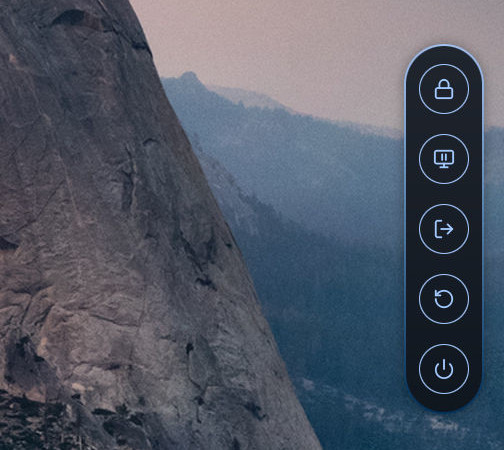
The ML4W Power Menu is developed in its own repository: https://github.com/mylinuxforwork/ml4w-powermenu. It is part of ML4W OS, but it also runs on its own on any Hyprland setup.
Usage
Use the arrow keys and Enter to pick a button, or click a button. Press Escape or click outside the menu to close it.
Keybindings
| Keybinding | Action |
|---|---|
| SUPER + CTRL + P | Toggle the power menu |
| SUPER + CTRL + L | Lock the screen |
The ml4w-powermenu command
ML4W OS installs the power menu into ~/.local/share/ml4w-powermenu and starts it from ml4w-autostart. The menu stays hidden until it is opened. The installer also adds the ml4w-powermenu command to ~/.local/bin, so you can start, stop and control the power menu from a terminal.
ml4w-powermenu [command]| Command | Description |
|---|---|
start | Start the power menu (default; does nothing if the power menu is already running) |
stop | Stop the power menu |
restart | Stop and start the power menu |
toggle / open / close | Show or hide the power menu |
reload | Re-read config.json and apply it |
edit | Open config.json in the configured editor |
help | Show all commands |
Configuration
The power menu is configured in one file only: ~/.config/ml4w-powermenu/config.json. The file is created on first start and merged over the built-in defaults, so it only needs the values you want to change. You can edit it directly or open it with ml4w-powermenu edit.
Here is the default configuration with all available options:
{
    "powermenu": {
        "order": [
            "lock",
            "suspend",
            "logout",
            "reboot",
            "poweroff"
        ],
        "marginRight": 0,
        "editorCommand": "~/.config/ml4w/settings/editor.sh"
    },
    "commands": {
        "lock": "~/.config/ml4w/scripts/ml4w-power -l",
        "suspend": "~/.config/ml4w/scripts/ml4w-power -s",
        "logout": "~/.config/ml4w/scripts/ml4w-power -e",
        "reboot": "~/.config/ml4w/scripts/ml4w-power -r",
        "poweroff": "~/.config/ml4w/scripts/ml4w-power -p"
    },
    "button": {
        "size": 50,
        "iconSize": 22,
        "spacing": 20,
        "borderWidth": 1
    },
    "pill": {
        "radius": 40,
        "paddingX": 15,
        "paddingY": 20,
        "animationDuration": 350
    },
    "border": {
        "width": 2,
        "colorTop": "",
        "colorBottom": ""
    },
    "opacity": {
        "normal": 0.9
    },
    "theme": {
        "colorsFile": "~/.config/ml4w-powermenu/colors.json"
    }
}powermenu.order: the buttons from top to bottom. The available buttons arelock,suspend,logout,rebootandpoweroff. Leave one out to hide it.powermenu.marginRight: the distance of the open menu from the right edge of the screen.powermenu.editorCommand: the editor that opensconfig.json. The file path is added as the last argument. If the value is empty or the program can't be found,xdg-openis used instead.commands.<button>: the command that runs when you click the button. The defaults call the ML4Wml4w-powerscript.border.colorTop/border.colorBottom: override the colors of the gradient border (e.g."#ff0000"). Empty uses the theme colors.theme.colorsFile: a JSON file of Material color roles (matugen'scolors.jsonformat). The power menu watches this file and updates its colors when it changes. ML4W OS generates it from your wallpaper with matugen.
All commands run through bash, so ~, arguments and pipes work.
For example, to show only three buttons and lock the screen with hyprlock directly:
{
    "powermenu": { "order": ["lock", "logout", "poweroff"] },
    "commands": {
        "lock": "pidof hyprlock || hyprlock"
    }
}
The file is watched, so changes apply as soon as you save it. You can also reload the configuration with ml4w-powermenu reload.
The full default configuration with comments is on GitHub: https://github.com/mylinuxforwork/ml4w-powermenu/blob/main/PowerApp/config.json
Update
The power menu is updated together with ML4W OS. To update only the power menu, run the installation script again:
curl -sSL https://raw.githubusercontent.com/mylinuxforwork/ml4w-powermenu/main/install.sh | bashThe script pulls the latest version into ~/.local/share/ml4w-powermenu.